
There are several ways to create a new page:
From the Admin page, navigate to All Pages and click the Add New Page button.
From the website, click the New link in the top navigation bar and select Page.
There are several ways to create a new page:
From the Admin page, navigate to All Pages and click the Add New Page button.
From the website, click the New link in the top navigation bar and select Page.
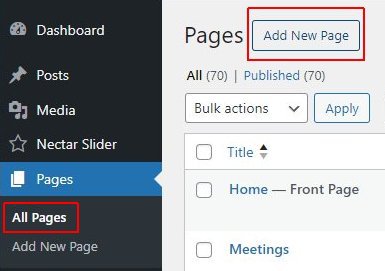
From the Admin page
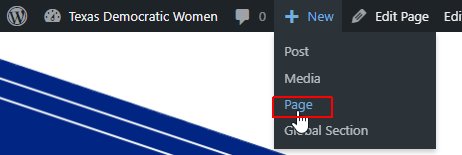
From a web page
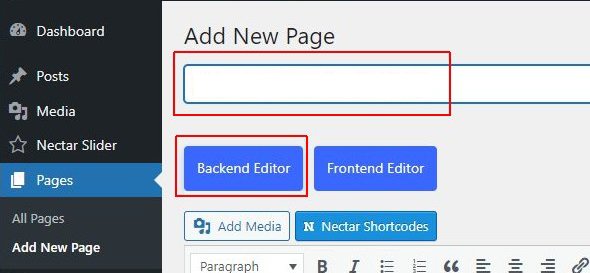
Enter a Title for the page and click the Backend Editor button.
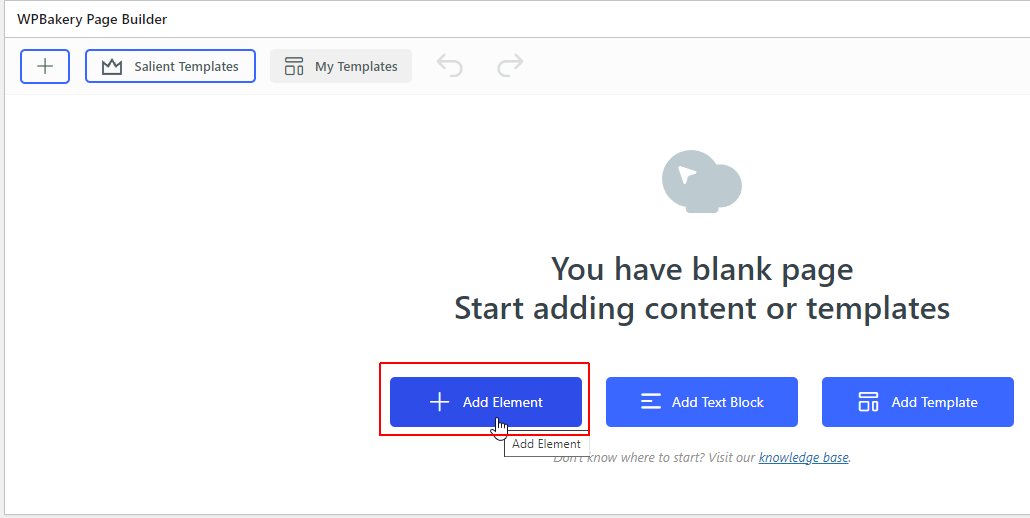
You will see the blank page prompt. Click the Add Element button to add a new row.
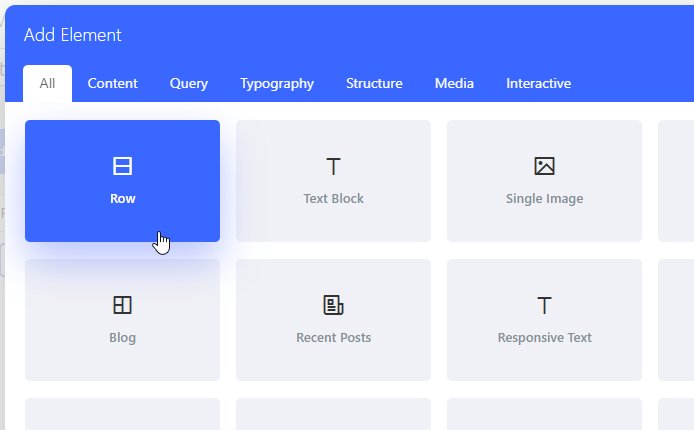
Click the columns icon and select the number of columns for this row.

Once you have the columns defined, click the plus icon to add an element to each column.

Repeat adding rows, columns, and elements until your page is complete.
For each element, you must click the Save Changes button at the bottom of the popup box to save the changes to that element.
When you have finished adding your content, click the Publish (or Update) button in the right navigation area to save all the changes to the page.
Once you have published your page, you need to add it to the Menu.

SAVE CHANGES TO EACH ELEMENT
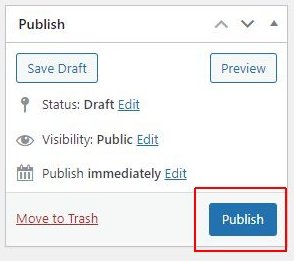
PUBLISH THE PAGE