
Rolling Image Gallery





If you want a rolling set of pictures like the one above on your page, you’ll create an Image Gallery with some different options.
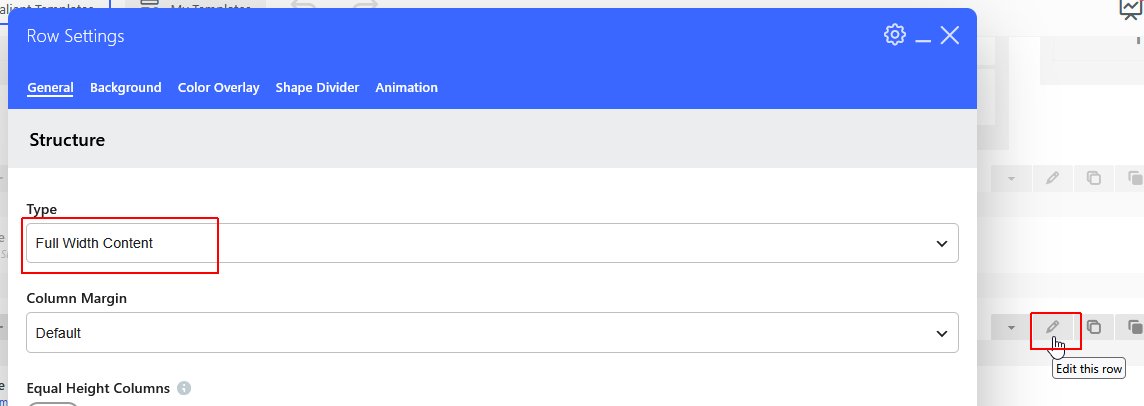
Create a row and set the Type to Full Width Content.
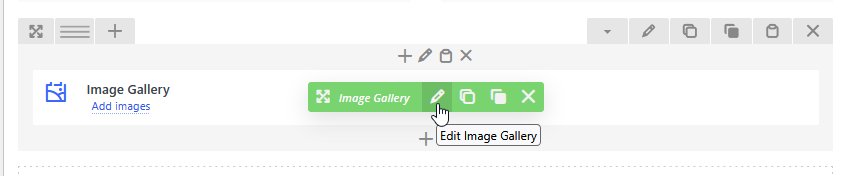
Place an Image Gallery in the Row, and then click Edit Image Gallery.
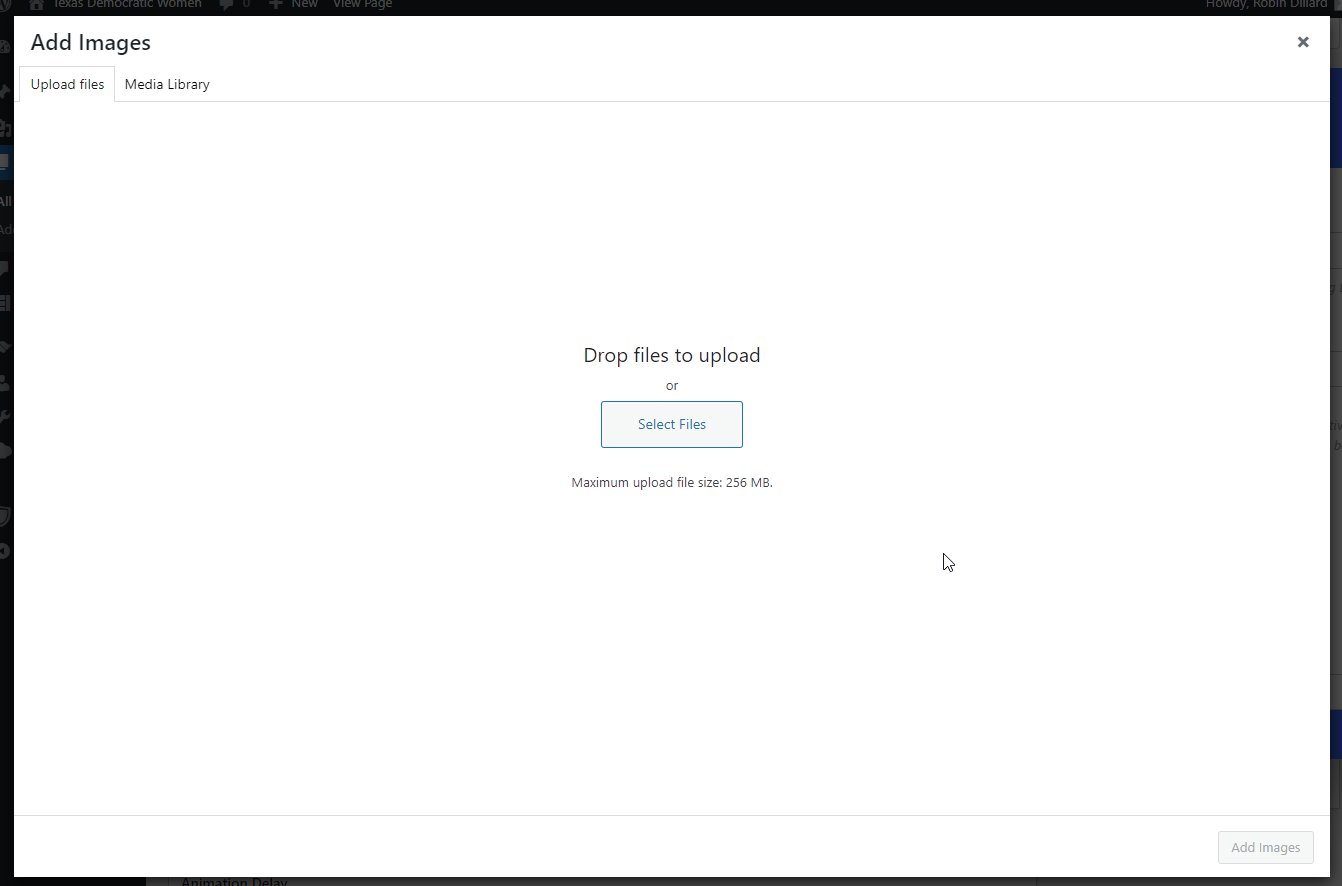
Drop or select your image files
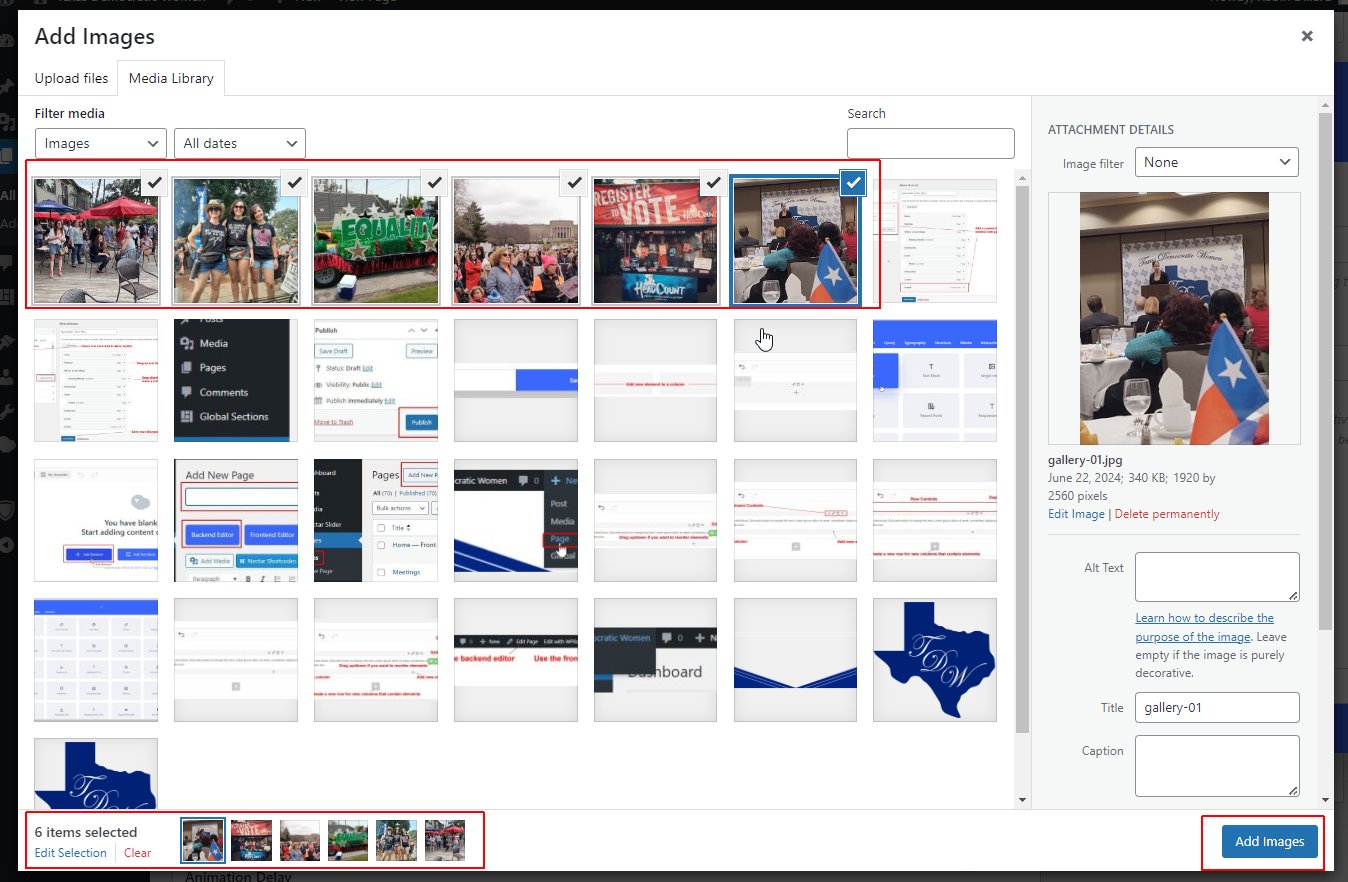
Click the Add images button.
When your images have finished uploading, you will see them in the Media Library with a checkmark in the upper right-hand corner of the thumbnail.
You also will see a summary of the checkmarked images in the bottom left-hand corner of the screen.
Check or uncheck images to add or remove them from the group.
Click the Add images button.
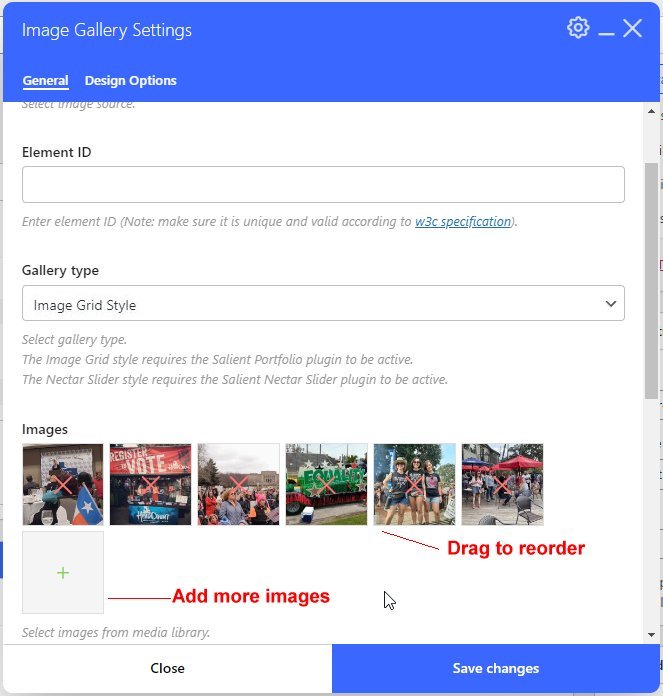
You will see thumbnail images under the control popup’s Images section.
You can drag to reorder the images or click the X over an image to remove it from the gallery.
You also can click the + icon in the blank thumbnail to add more images.
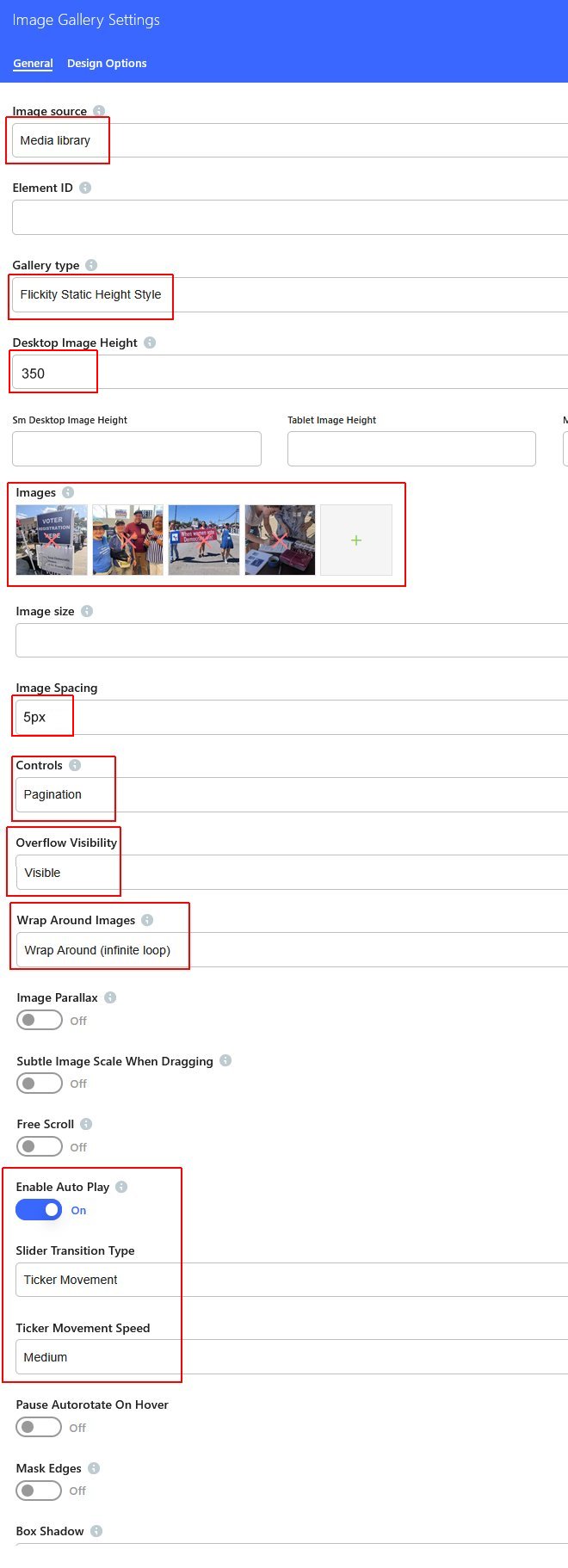
There are several selections to adjust, but here are the basic ones that were used in the example above:
- Image source: Media Library
- Gallery type: Flickity Static Height Style
- Desktop Image Height: 350
- Image Spacing: 5px
- Controls: Pagination
- Overflow Visibility: Visible
- Wrap Around Images: (Wrap Around infinite loop)
- Enable Auto Play: On
- Slider Transition Type: Ticker Movement
- Ticker Movement Speed: Medium
Click the Save Changes button.
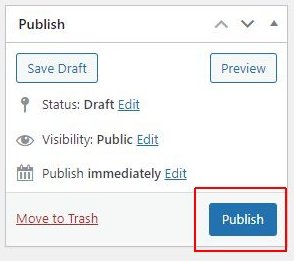
Click the Publish (or Update) button in the right navigation area to save all the changes to the page.