Nectar Slider


When Women Vote Texas Wins!


The Nectar Slider supports unlimited instances so you can have as many different Nectar Sliders on your site as you desire. You’ll find configuration options when creating a slide that are specific to the slide. And more configuration options which will apply to all slides in the instance when adding the Nectar Slider to a page row.

Click the images to see a larger image.
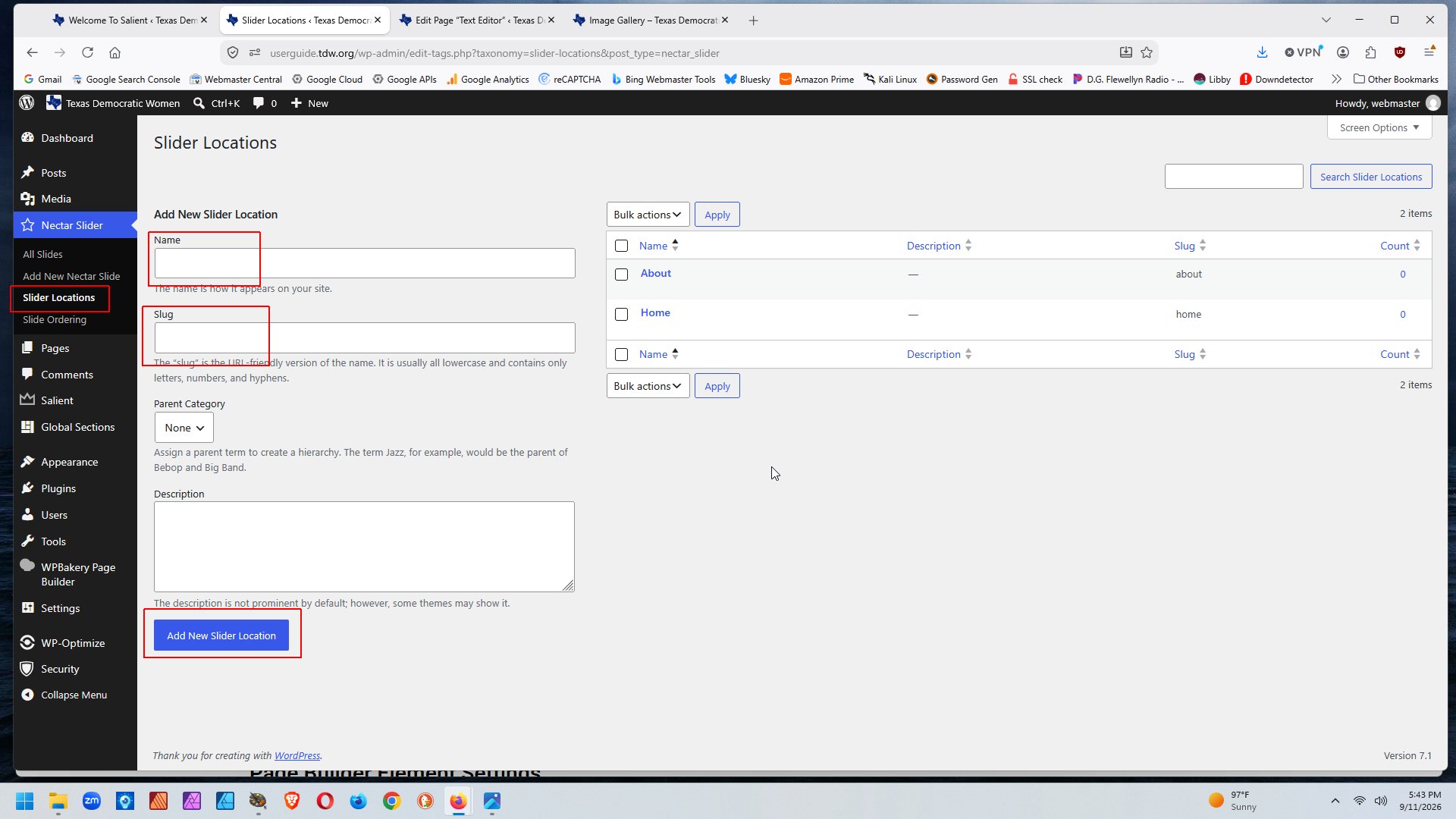
Create your Location(s)

Navigate to Nectar Slider > Slider Locations.

Enter a Name and Slug.

Click the Add New Slider Location button.

Add Your Slides

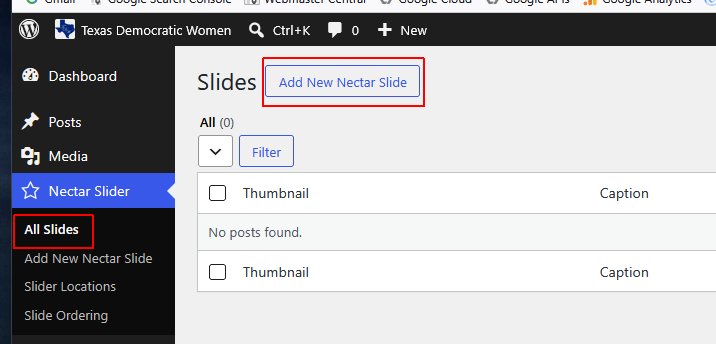
Navigate to Nectar Slider > All Slides.

Click the Add New Nectar Slide button.

Edit Your Slide

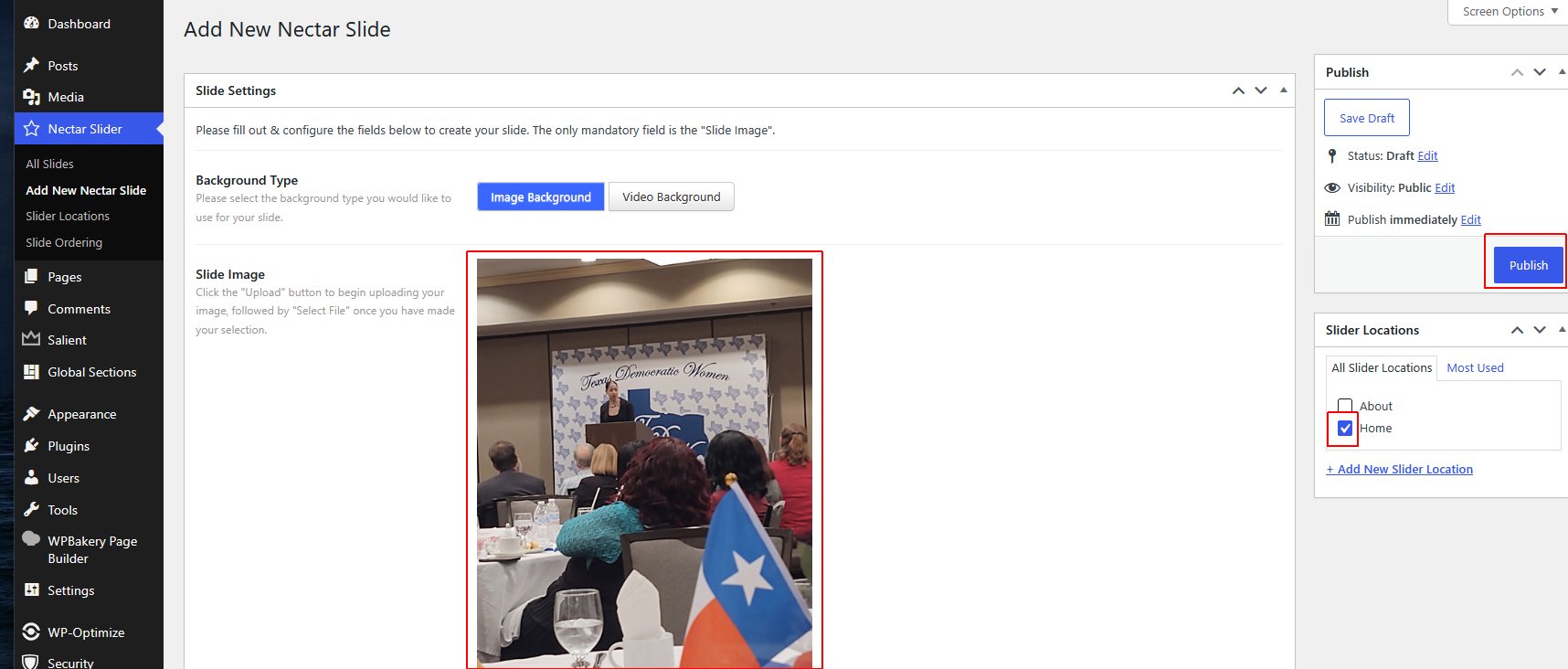
Add your slides and assign them to a Location.

Scroll down to add a Heading, Button, and other options.

Click the Publish button when you are finished.

Place a Slider on a Page

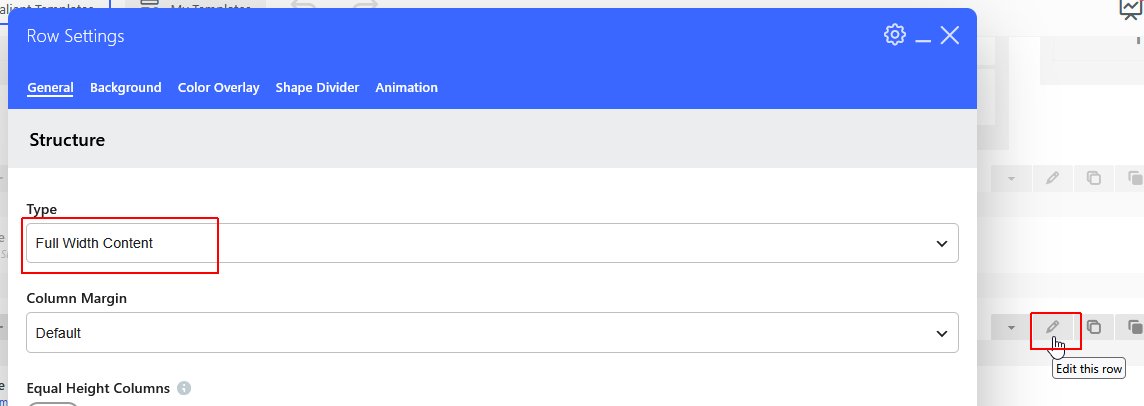
Create a row and select if you want the slider to fit across the entire screen (like the example above) on contained within the content boundaries.

Edit Slider Options

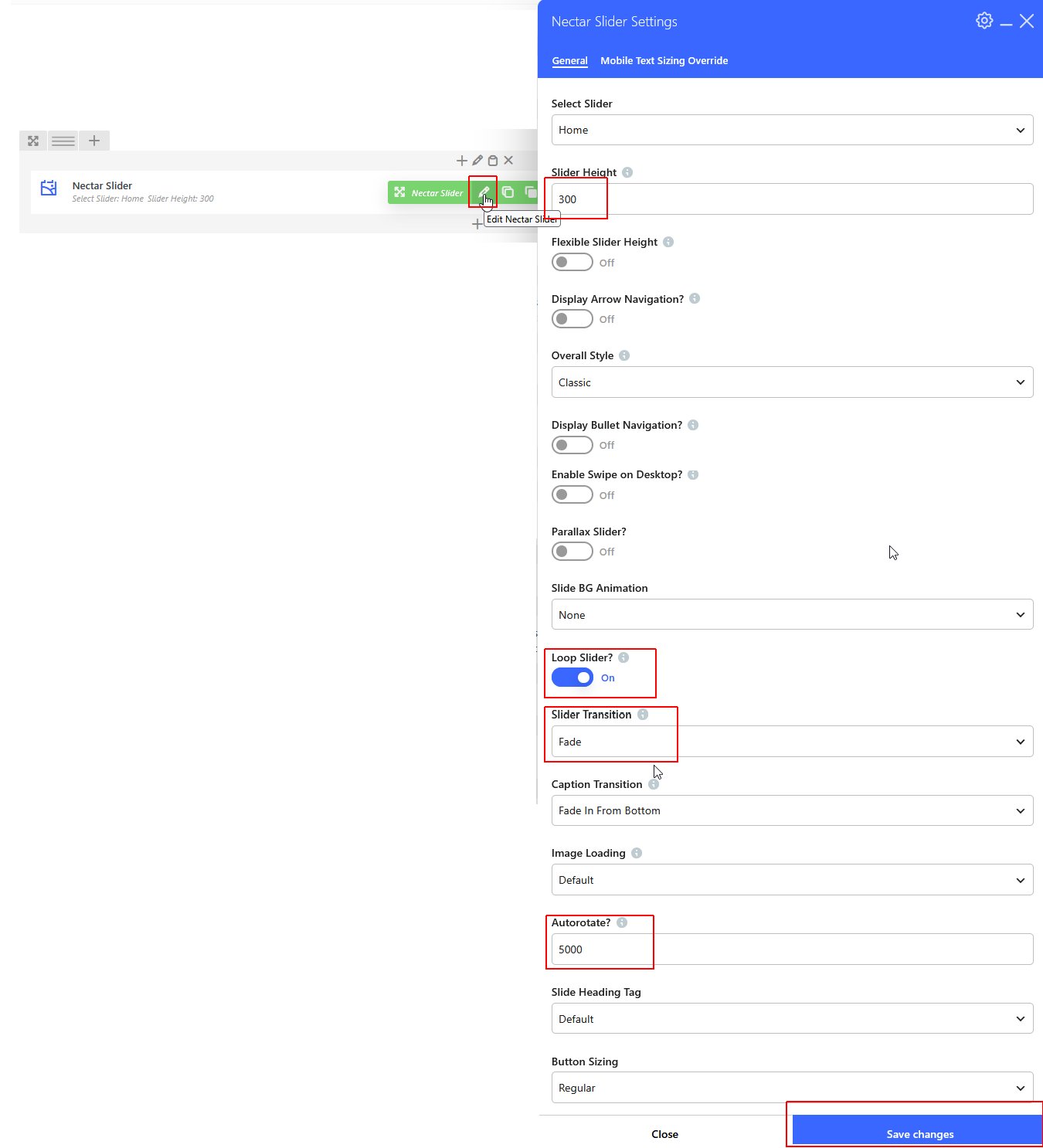
You have numerous options for how you want your slider displayed.

The options highlighted with a red box are used in the example above.

When you’ve selected your options, click the Save Changes button and the Publish/Update button on the Page.